How You Can Use Notebook Paper in a Printer Without Jams
You can use notebook paper in your printer without jams by choosing sheets close to standard weight (around 20 lb). Keep them flat, dry, and wrinkle-free for best results.
Load only a few aligned sheets at a time. Adjust your tray guides snugly or use manual feed if available to avoid paper jams.
Match your printer’s settings to the thicker, textured paper type for smoother feeding. Handle and store paper carefully to prevent curls or static buildup.
If you want to avoid mistakes and get perfect prints, there’s more to contemplate. Taking these extra steps helps ensure your printer runs smoothly every time.
Choosing the Right Notebook Paper for Printing
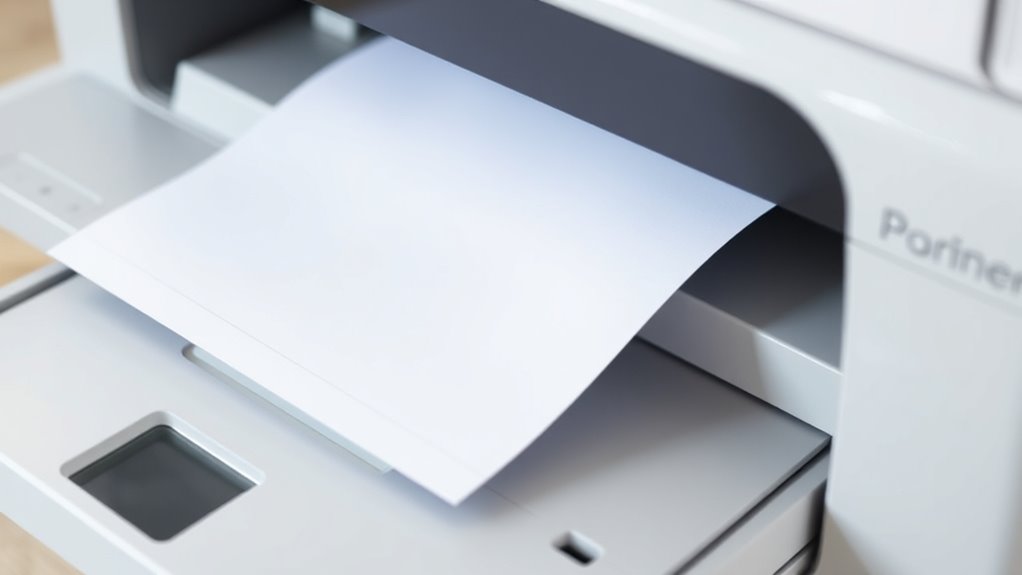
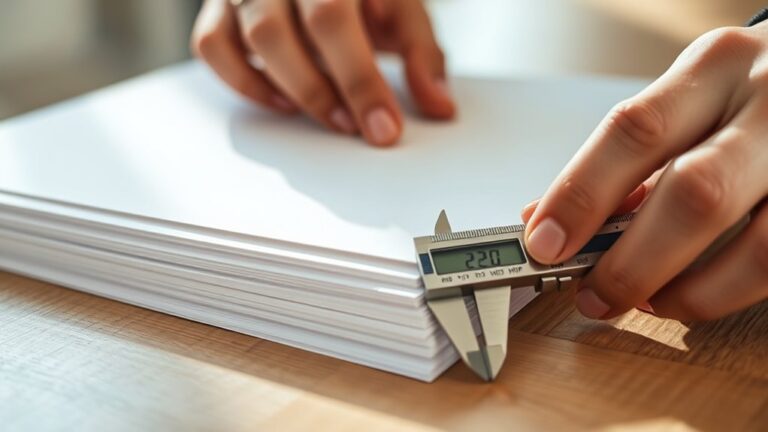
When you’re choosing notebook paper for printing, you need to take into account its thickness and surface texture to verify your printer handles it smoothly. Opt for paper that’s close to standard printer paper weight—usually around 20 lb or 75 gsm—to avoid jams or misfeeds.
If you pick thicker or coated paper, your printer might struggle. Also, check the surface texture; smooth paper allows ink to dry quickly and prevents smudging.
Avoid papers with heavy ruling lines or perforations, as they can interfere with the print quality. Finally, consider the paper size and make sure it fits your printer’s specifications.
Preparing Your Printer for Notebook Paper
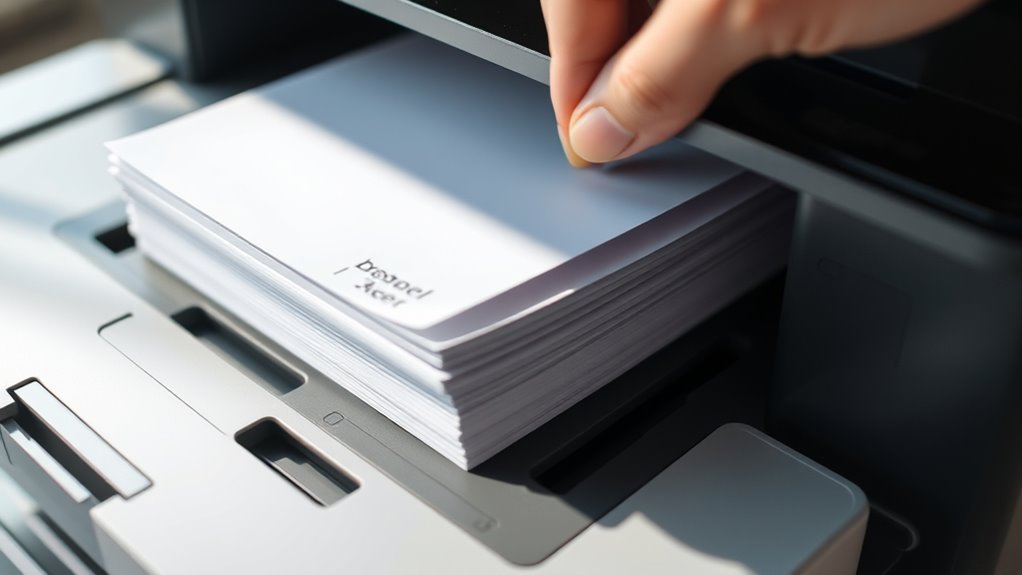
Before loading notebook paper, you’ll want to adjust your printer settings to accommodate its unique thickness and texture. Start by removing any standard paper from the tray to prevent mixing different paper types.
Next, check your printer’s manual to locate the adjustable paper guides in the input tray. Slide these guides snugly against the notebook paper’s edges to keep it aligned and reduce the chance of jams.
Locate and adjust the paper guides to fit notebook paper snugly, preventing misalignment and paper jams.
If your printer has a manual feed slot, consider using it for better control. Also, inspect the rollers for dust or debris; cleaning them gently can improve paper handling.
Finally, avoid overfilling the tray—load only a few sheets at a time to ensure smooth feeding. These steps prepare your printer to handle notebook paper more reliably.
Adjusting Printer Settings to Prevent Jams
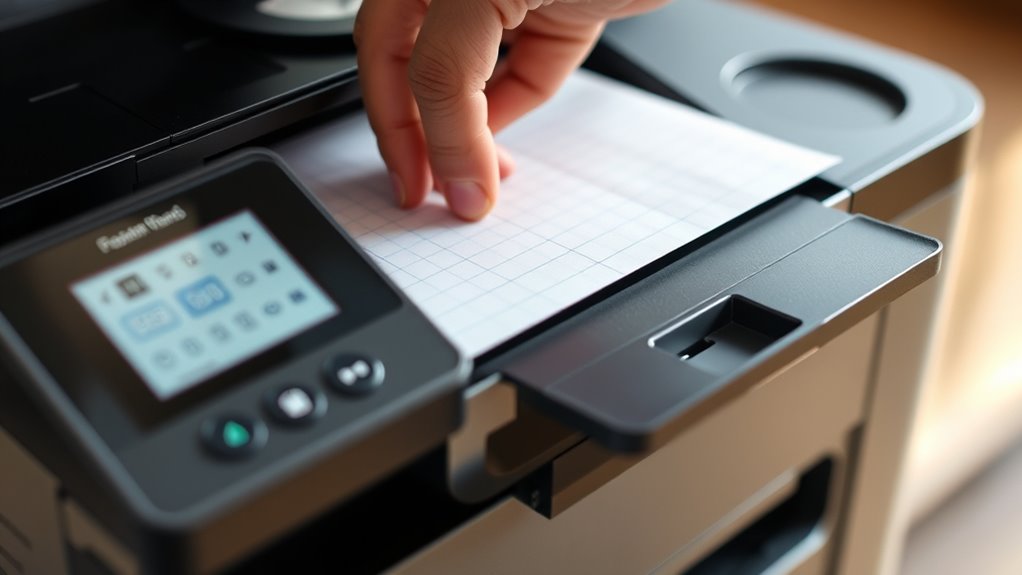
To prevent jams when printing on notebook paper, you’ll want to adjust your printer settings carefully. Start by selecting the correct paper type and adjusting the paper thickness if your printer allows it.
Using manual feed mode can also help control the paper’s path and reduce the chance of jams. It’s a simple step that often makes a big difference.
Selecting Paper Type Settings
Since notebook paper often differs in thickness and texture from standard printer paper, you’ll need to modify your printer’s paper type settings to guarantee smooth operation.
Check your printer’s menu or driver settings for options like “Plain Paper,” “Thick Paper,” or “Cardstock.” Selecting the correct setting helps the printer feed the paper accurately and reduces the chance of jams.
Here’s a quick guide to common paper type settings and when to use them:
| Paper Type | Best For |
|---|---|
| Plain Paper | Standard printer, notebook paper |
| Thick Paper | Heavier or textured notebook paper |
| Cardstock | Very thick notebook paper or handmade sheets |
Adjusting these settings ensures your printer handles notebook paper without issues. It’s a simple step that can save you from paper jams and printing errors.
Adjusting Paper Thickness
When you adjust your printer’s paper thickness settings, you help it handle notebook paper more reliably and reduce the chance of jams. Notebook paper is often thinner or rougher than standard printer paper, so tweaking the thickness setting ensures the rollers grip and feed the paper properly.
Check your printer’s menu or software for options like “Paper Thickness,” “Media Type,” or “Paper Weight.” Increase the thickness setting slightly if your printer allows it, as this tells the machine to feed the paper more gently.
Just be careful not to set it too high, which can cause misfeeds. If your printer doesn’t have this option, try selecting a heavier paper type to simulate the adjustment.
This simple step improves performance and protects your printer from damage caused by paper jams. It’s a quick fix that can save you a lot of hassle!
Using Manual Feed Mode
Although notebook paper can cause feeding issues, you can reduce jams by using your printer’s manual feed mode. This mode lets you feed paper one sheet at a time, giving you better control over the process.
To activate it, locate the manual feed option in your printer’s settings or control panel. Load the notebook paper directly into the manual feed tray, adjusting the guides to fit snugly without bending the paper.
By feeding sheets individually, you minimize the risk of multiple sheets sticking together or misfeeding. This simple adjustment helps your printer handle notebook paper more smoothly, decreasing jams and improving print quality.
Always check your printer’s manual for specific steps to enable manual feed mode and optimize the settings for thicker or textured papers. It’s a quick fix that can save you a lot of hassle!
Properly Loading Notebook Paper Into the Printer
Before you load notebook paper, make sure the edges are perfectly aligned to avoid jams. Adjust the paper guides snugly against the stack to keep the paper steady.
Taking these steps helps your printer feed the paper smoothly every time. It’s a simple trick that saves you from frustration later on!
Align Edges Precisely
Since printer jams often result from misaligned paper, you’ll want to guarantee the edges of your notebook paper are perfectly aligned before loading it into the tray. Start by tapping the stack on a flat surface to even out the edges.
This simple step ensures all sheets line up flush, preventing skewed feeding. Hold the stack firmly and check that no pages stick out or are bent. Misaligned edges cause the printer rollers to grab multiple sheets or cause a jam.
When the stack looks neat and square, place it carefully in the tray without shifting the alignment. Taking a moment to align your paper precisely helps your printer feed smoothly and avoids frustrating interruptions during printing.
Adjust Paper Guides
When you load notebook paper into your printer, adjusting the paper guides properly guarantees the sheets feed straight and avoid jams. Start by sliding the paper guides snugly against the paper edges.
Too tight, and the paper might crumple; too loose, and it can skew or jam. Check that the guides align with the notebook paper’s width, especially if the sheets are slightly narrower or wider than standard printer paper.
| Step | Action |
|---|---|
| 1. Load Paper | Place notebook paper in the tray neatly |
| 2. Adjust Guides | Slide guides to fit the paper edges |
| 3. Test Feed | Print a test page to confirm alignment |
Proper guide adjustment keeps your printing smooth and jam-free.
Tips for Handling and Storing Notebook Paper
Although notebook paper is designed for everyday use, handling it carefully can prevent jams and damage when printing. You’ll want to keep the paper flat, clean, and dry to guarantee smooth feeding through your printer.
Handle notebook paper with care—keep it flat, clean, and dry to prevent printer jams and damage.
Proper storage is key to maintaining the paper’s quality and avoiding curling or wrinkling. So, it really pays off to be a bit mindful about how you store it.
Here are some tips to handle and store notebook paper effectively:
- Store it in a cool, dry place away from moisture and direct sunlight.
- Keep the paper in its original packaging or a flat container to avoid bending.
And before printing, fan the paper stack to separate sheets and reduce static buildup. This little trick can save you a lot of hassle!
Troubleshooting Common Printing Issues With Notebook Paper
If your printer jams or produces smudged prints while using notebook paper, you’re not alone. Notebook paper isn’t designed for printers, so it can cause common issues.
To troubleshoot, check the paper’s thickness, alignment, and moisture level. Also, verify your printer settings match the paper type.
| Issue | Solution |
|---|---|
| Paper jams | Fan sheets before loading; realign paper tray |
| Smudged prints | Use dry, clean paper; adjust print quality settings |
| Misfeeds | Avoid wrinkled or folded sheets |
| Ink not drying | Use slower print speed; select appropriate paper type |
Conclusion
Printing on notebook paper doesn’t have to be a tightrope walk. By choosing the right paper, prepping your printer, and loading it carefully, you’ll glide through without a hitch.
Think of your printer as a dance partner—treat it well, adjust your moves (settings), and avoid stepping on toes (jams). With these simple steps, you’ll turn a tricky task into a smooth performance, keeping your pages crisp and your printer happy every time.
Remember, using notebook paper in a printer without jams is all about preparation. Select paper that’s not too thick or flimsy, set your printer to handle the paper type, and load it correctly. These small actions make a big difference in avoiding jams and ensuring clean prints.
So, next time you want to print on notebook paper, follow these easy tips. You’ll enjoy smooth printing and crisp pages, all while keeping your printer running smoothly and jam-free every time.