
How to Load Paper Into a Canon Printer in 10 Easy Steps
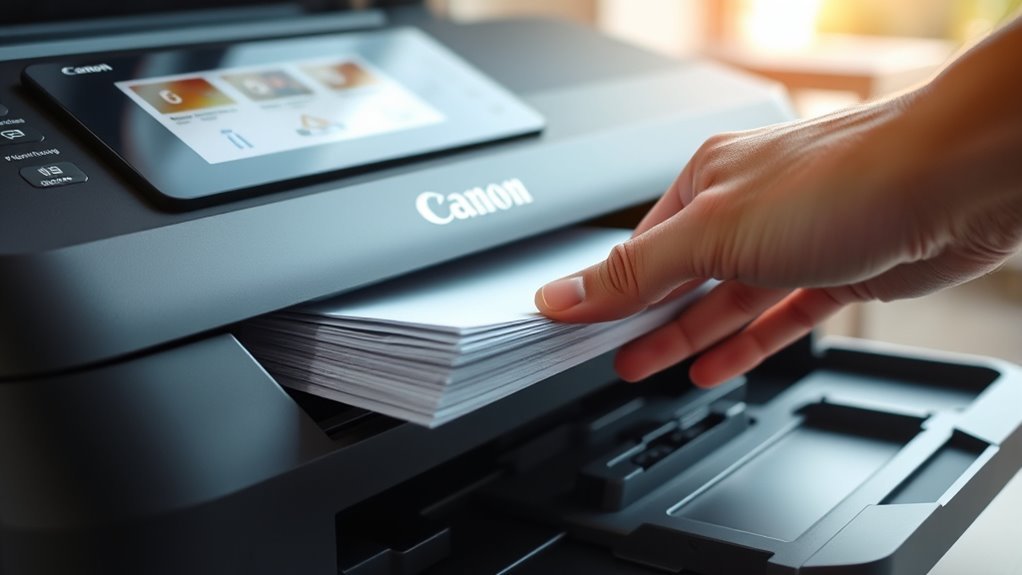
First, check your Canon printer’s paper type and size requirements. It’s important to use the right kind of paper to avoid jams and ensure the best print quality. Prepare a neat stack of suitable, unwrinkled paper and fan it to prevent sticking.
Next, open the input tray and adjust the paper guides outward. Load the paper with the print side down and the top edge first. Slide the guides snugly against the paper’s edges so everything is aligned correctly.
Then, close the tray securely. Don’t forget to set the correct paper size and type on both your printer and computer. This step helps your printer handle the paper properly.
Finally, print a test page to verify proper feeding and alignment. If everything looks good, you’re all set. Keep exploring for more detailed tips to optimize your printing experience.
Check Your Printer’s Paper Specifications
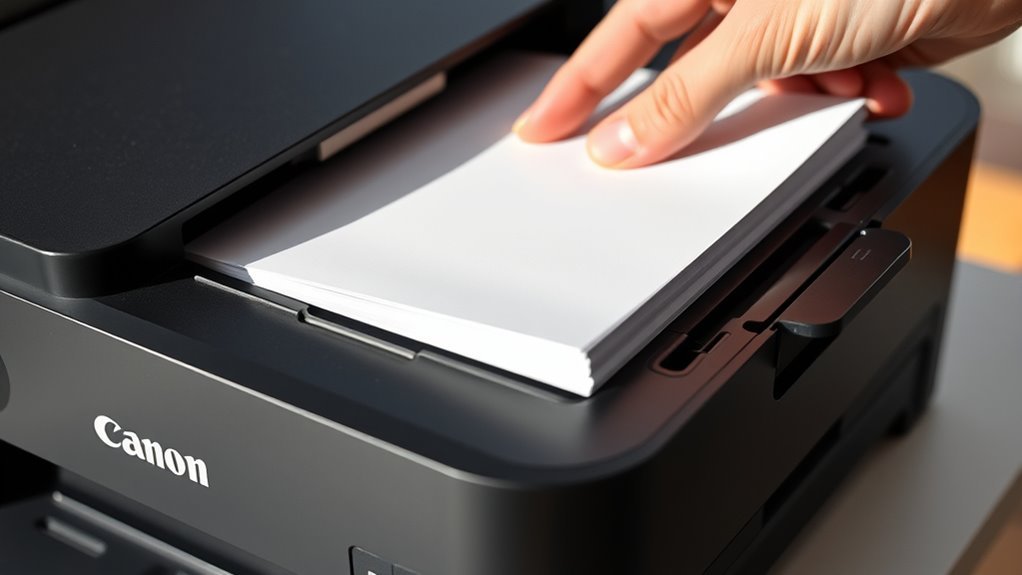
Before loading paper into your Canon printer, make sure you check its paper specifications. You’ll want to confirm the size, type, and weight of paper your printer supports.
Using the wrong paper can cause jams or poor print quality. Most Canon printers handle standard sizes like Letter, A4, and Legal, but it’s best to verify your model’s limits in the user manual or on Canon’s website.
Also, check if your printer can handle specialty paper such as photo paper or cardstock. Paper weight is vital too—too thick or thin paper might not feed correctly.
Prepare the Paper Stack
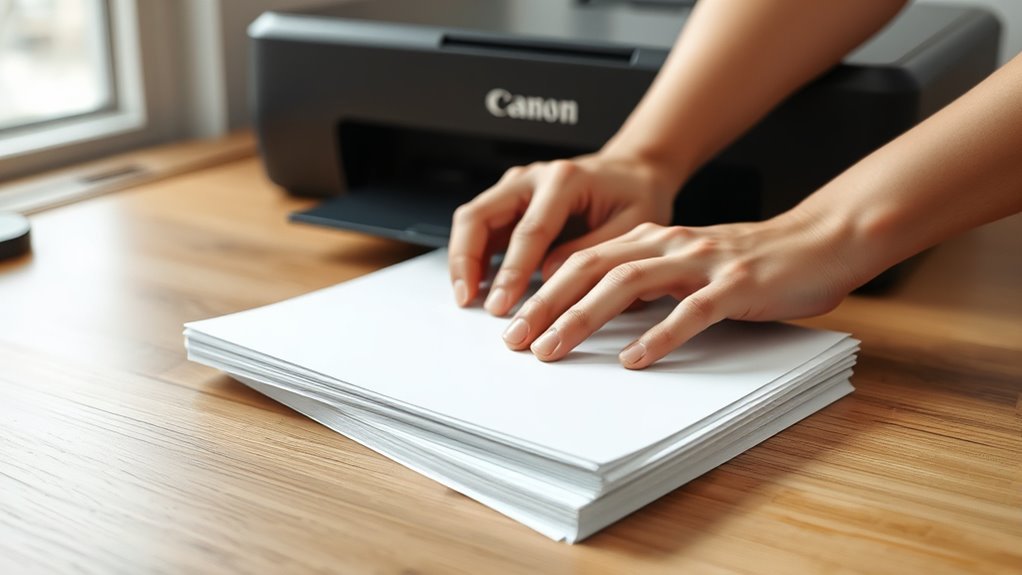
Before loading paper into your Canon printer, pick the right paper type that matches your printing needs.
Make certain to align the edges of the paper stack neatly to prevent jams.
Taking these steps helps ensure smooth printing every time.
Choose Paper Type
When selecting the right paper for your Canon printer, you’ll want to contemplate the type that best suits your printing needs. Different projects call for different paper qualities, so picking the right one guarantees excellent results and avoids jams.
- Plain Paper: Ideal for everyday printing like documents and drafts.
- Photo Paper: Use this for printing vibrant, high-quality photos with glossy or matte finishes.
- Cardstock: Perfect for heavier prints like invitations or business cards, providing durability and thickness.
- Specialty Paper: Includes labels, envelopes, and transparencies designed for specific purposes.
Choosing the appropriate paper not only enhances your print quality but also protects your printer from potential damage caused by unsuitable materials. So, it’s worth taking a moment to choose wisely!
Align Paper Edges
A neat stack of paper makes loading your Canon printer much smoother. Before placing the paper in the tray, align the edges carefully.
Hold the stack firmly and tap it on a flat surface to even out the sheets. This step prevents jams and misfeeds during printing.
Once the edges are straight, fan the stack slightly to separate the sheets and reduce static cling. This also helps the printer pick up one sheet at a time.
After aligning, check the paper size and orientation to match your printer’s settings. Properly aligned paper guarantees consistent feeding and crisp prints, saving you time and frustration.
Taking a moment to prepare the paper stack right will improve your overall printing experience.
Adjust the Paper Guides in the Tray
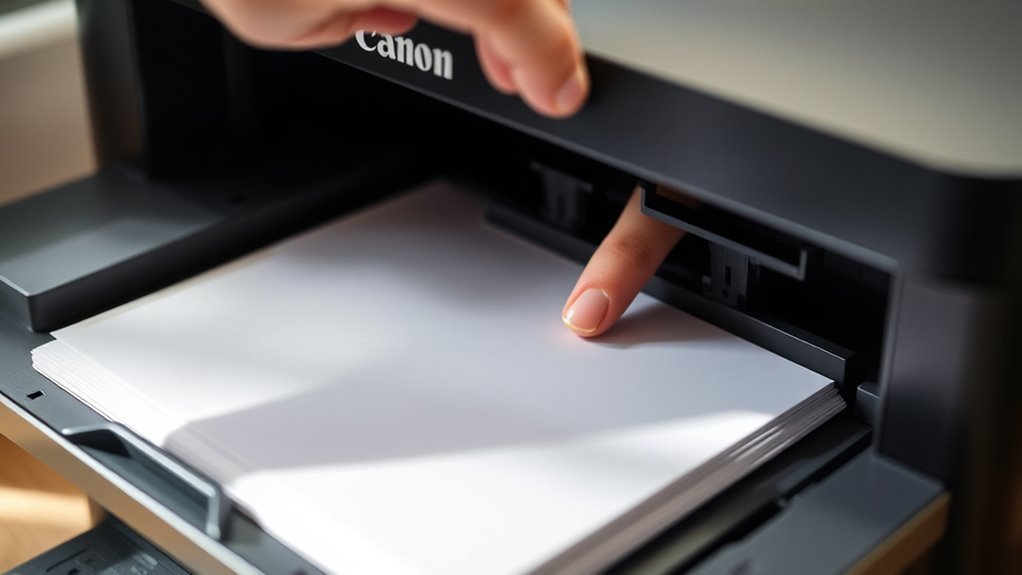
Locate the paper guides inside the tray before you load the paper. You’ll want to slide these guides so they snugly fit the size of your paper stack.
This keeps the paper straight and helps prevent jams during printing. It’s a simple step that really makes a difference!
Locate Paper Guides
Before placing the paper into the tray, you’ll want to adjust the paper guides to fit the size of your paper snugly.
First, locate the paper guides inside the paper tray. These guides are usually plastic sliders that hold your paper in place.
Here’s how to find and prepare them:
- Open the paper tray completely.
- Look for the adjustable side and front guides within the tray.
- Identify the tabs or levers that allow you to slide the guides.
- Make sure the guides move smoothly and can be positioned to secure the paper without bending it.
Adjust to Paper Size
When you adjust the paper guides in the tray, you’ll guarantee your paper fits securely and feeds correctly during printing. Begin by sliding the guides outward to create enough space for your stack of paper.
Place the paper neatly into the tray, ensuring it’s aligned with the tray edges. Next, slide the paper guides inward until they gently rest against the edges of the paper.
Be careful not to push too hard, as overly tight guides can cause paper jams or misfeeds. Adjust both the side and front guides to match the paper size exactly, whether it’s letter, legal, or A4.
Properly set guides keep the paper stable, preventing skewed prints and feeding errors during your print job. It really makes a difference!
Load the Paper Into the Input Tray
How do you guarantee your Canon printer handles paper smoothly? Start by loading the paper correctly into the input tray to avoid jams and misfeeds.
First, fan the stack of paper to separate the sheets and prevent sticking. Then, place the paper stack neatly into the input tray with the print side facing down.
Make sure the paper fits within the tray’s edges without bending or folding. Next, slide the paper guides gently against the edges of the paper stack to hold it in place.
Align the Paper Properly
Make sure you check the paper orientation before placing it in the tray. Adjust the paper guides so the sheets stay aligned and feed smoothly.
Also, avoid overfilling the tray to prevent jams and misfeeds. It really helps keep everything running without a hitch!
Check Paper Orientation
Why does paper orientation matter so much in your Canon printer? Getting it right guarantees smooth printing without jams or misprints.
When you load paper, check the following:
- Print Side Up or Down: Make sure the printable side faces the correct direction, usually face down for Canon printers.
- Top Edge Forward: Load the paper with the top edge entering the printer first.
- Paper Type Alignment: Use the correct paper type setting, as orientation can vary with specialty papers.
- Avoid Wrinkled or Curled Paper: Flat, smooth sheets feed better and prevent errors.
Taking a moment to get this right really saves you time and frustration later on!
Adjust Paper Guides
Once you’ve guaranteed the paper is oriented correctly, the next step is to adjust the paper guides. Slide the guides snugly against the edges of the paper stack to keep it aligned.
Make sure the guides aren’t too tight, as this can bend the paper and cause jams. They should hold the paper firmly in place without forcing it.
Check that the stack sits flat and evenly within the tray, with no sheets sticking out. Properly aligned paper ensures smooth feeding and prevents misfeeds or skewed prints.
Take a moment to double-check the guides after loading, as shifting can happen during the process. By adjusting the paper guides carefully, you set the stage for accurate, hassle-free printing every time.
Avoid Overfilling Tray
Although it might be tempting to fill the paper tray to its maximum capacity, overfilling can cause jams and feeding issues. To keep your Canon printer running smoothly, follow these steps to avoid overfilling and align the paper properly:
- Only load paper up to the indicated fill line in the tray.
- Fan the stack of paper before loading to prevent sheets from sticking together.
- Make sure the paper guides snugly fit the paper without bending it.
- Double-check that the paper is flat and not curled or folded.
Doing these little things can save you a lot of hassle down the line. Trust me, your printer will thank you!
Avoid Overfilling the Tray
Many users underestimate the importance of not overfilling the paper tray. When you load too much paper, it can cause jams, misfeeds, and damage to your Canon printer.
Always check the maximum capacity indicated on the tray and never exceed it. Overfilling creates pressure on the paper stack, making it difficult for the printer’s rollers to pick up sheets accurately.
This leads to wasted paper and interrupts your printing tasks. To avoid problems, fan the paper before loading to separate sheets and align them neatly within the tray’s guides.
Keep the stack below the maximum fill line, ensuring smooth feeding. Taking these simple precautions will help your printer run efficiently and extend its lifespan.
Close the Paper Tray Securely
After properly loading the paper without overfilling, you’ll want to make sure the paper tray is closed securely. This guarantees the printer recognizes the paper and prevents jams or misfeeds.
Follow these steps to close the tray correctly:
Ensure the tray is gently pushed in and clicks securely to prevent paper jams and misfeeds.
- Push the tray gently toward the printer until it stops.
- Apply even pressure along the tray’s edge to avoid tilting.
- Listen for a click sound that indicates the tray is locked in place.
- Double-check that the tray is flush with the printer body and doesn’t protrude.
Closing the tray securely keeps the paper aligned and the printer ready for your next print job. Don’t rush this step—it’s key to smooth printing and avoiding paper errors.
Set the Paper Type and Size on the Printer
Setting the paper type and size on your Canon printer guarantees your documents print correctly and prevents errors. To start, access the printer’s control panel or touchscreen. Navigate to the “Settings” or “Paper Settings” menu.
Select the paper size that matches what you loaded, such as Letter, A4, or Legal. Next, choose the paper type—plain, photo, or glossy—based on your printing needs. This step helps the printer adjust ink usage and drying time for ideal output.
| Paper Size | Common Use | Example |
|---|---|---|
| Letter | Everyday printing | Documents, letters |
| A4 | International | Reports, forms |
| Legal | Legal documents | Contracts |
| Photo | Photos | Glossy prints |
| Envelope | Mailing | Letters, cards |
Double-check settings before printing to avoid jams or misprints. It’s a quick step that can save you a lot of hassle later!
Verify the Paper Settings on Your Computer
Before you hit print, make sure your computer’s paper settings match what you’ve loaded into your Canon printer. Incorrect settings can cause jams or misprints, so double-checking saves time and frustration.
Always verify your computer’s paper settings match your Canon printer to avoid jams and misprints.
Follow these steps to verify your paper settings:
- Open the document you want to print and click on “File” > “Print.”
- Select your Canon printer from the printer list.
- Click on “Printer Properties” or “Preferences” to access paper settings.
- Confirm the paper size and type match the paper loaded in your printer tray.
Doing this guarantees your print job goes smoothly without errors or wasted paper. It’s a quick step that ensures your prints come out exactly as expected.
Test Print to Confirm Proper Loading
Once you’ve confirmed your paper settings match the loaded paper, it’s time to run a test print. This step guarantees your Canon printer feeds the paper correctly and prints without errors.
Start by selecting a simple document or the printer’s built-in test page from your computer. If the print comes out clean and aligned, you’re all set. If not, check for jams or misaligned paper and try again.
| Step | Action | Result |
|---|---|---|
| 1 | Select test print in settings | Prints a test page |
| 2 | Observe the output | Check for smudges or misfeeds |
| 3 | Adjust paper or settings if needed | Corrects feeding or alignment |
| 4 | Reprint test page | Confirms proper loading |
Conclusion
Now that you’ve checked your printer’s specs, prepared your paper, adjusted the guides, and loaded it right, you’re ready to close the tray securely. Next, set the paper type and size on your printer.
Then, verify the settings on your computer before you hit print. Doing a test print helps ensure everything is set correctly.
By following these steps carefully and consistently, you’ll avoid jams and guarantee crisp prints. It also saves you time and frustration in the long run.
Keep these habits, trust the process, and enjoy smooth, hassle-free printing every time. Loading paper into a Canon printer properly is key to getting the best print quality and preventing common issues. With a little practice, this quick routine becomes second nature. So go ahead, print with confidence, and make your Canon printer work perfectly for you every time!